Search is changing thanks to artificial intelligence.
It’s not just that search engines are using AI to categorize and deliver results (though they are).
It’s that the power of AI is making new, better types of search possible.
Searches are becoming more personalized. Search engines now aim to deliver the right result for your particular needs.
Location and context are becoming more important, too. We’re searching more on-the-go. We use smartphones to discover results in real-time, just before we act or buy.
Voice search is on the rise, thanks to advancements in AI. Natural language processing helps systems like Alexa, Siri and Google Assistant "understand" what you say. Natural language generation helps them "respond" to your queries.
On top of all this, the usefulness of search is improving.
Says search expert Duane Forrester at Yext:
“If we look at pure search results, AI is deep in the mix, helping to sort the results we do still read. It’s not deciding what makes the cut to be in the answers we get back (yet), but it’s working to sort the order in which we see those results, effectively acting as a filtering layer based on the search engine’s collective knowledge about us.
“Did you visit X website in the last Y number of days? Google’s system knows — and seeks data on whether that visit was positive for you. If it looks to have been a good fit, the AI may decide to push an answer from that same website higher in the stack hoping to replicate your positive experience for others.”
This is all good for consumers. After all, we get even better results tailored to our particular needs, across text and voice.
It will be good for brands, too. They'll show up more often at the right time when consumers look for topics related to their business.
But, brands need to prepare for this future to capture the benefits.
Especially brands that rely on blogging to drive awareness, leads, and sales.
As search moves towards voice, how people discover and consume content is changing.
How to Prepare Your Blog for AI-Powered Search
So how do you make sure you’re creating blog content for this new age of AI-enhanced search? Forrester at Yext says to look at your “content and its context.” He recommends several action steps to prepare your blog for this future.
One thing is clear: If you’re not doing the above, it’s time to start. Artificial intelligence is here. It’s transforming search. And this is all happening faster than expected. To position your brand, big or small, for AI-powered search, now is the time.
The Marketing AI Institute is a content hub that provides actionable information on AI for marketers. It features real-world use cases and expert advice from leading companies like HubSpot. Subscribe today to get actionable insights first.

Wouldn't it be great if creating infographics was as simple as writing regular ol' text-based blog posts? Unfortunately, the reality is that making visual content like this usually takes a lot more time, effort, and let's face it -- skill -- than the written word. Usually.
But considering the popularity and effectiveness of visual content in marketing today, you can't just afford to throw in the towel.
That's why we decided to take all the pain and suffering out of infographic creation. Seriously -- don't give up just yet. You, too, can create infographics that are professional-looking, high-quality, and completed in under an hour. I'm going to prove it. First things first:
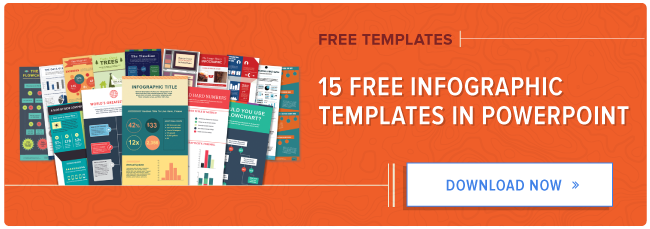
Then, all you have to do is provide the content to use inside them. Easy as that. In fact, I'm going to show you just how easy it is to make your own infographic by demonstrating with one of our 15 infographic templates in PowerPoint (pictured above). Then, I'll explain exactly what I did so you get a sense of how easy it really is.
Would you rather watch this tutorial instead of read it? Check out the video below:
Your first step is to organize all the content and data you'll use in the infographic. You can either collect third-party data or use your own original data. If you use third-party data, just be sure you properly cite your sources -- just like in any other good piece of content.
To keep your infographic uncluttered by a ton of different source URLs, a great way to cite your sources is to include a simple URL at the bottom of your infographic that links to a page on your site. You can also list the individual stats used in your infographic, and their sources -- such as the landing page to the full offer on which you're basing this free infographic. I'll show you what this citation looks like in a minute.
That way, your infographic looks clean and professional, yet people will still be able to access the sources no matter where the infographic gets shared or embedded. It may also even drive visitors back to your site.
Your next step is to choose an infographic template appropriate for representing that data. The important thing is to choose a template that specifically works for the type of data set/content you want to present. As you saw pictured above, you can download our 15 infographic templates in PowerPoint and choose whichever template you'd like. Some of your template options here include a timeline, flowchart, side-by-side comparison, and a data-driven infographic.
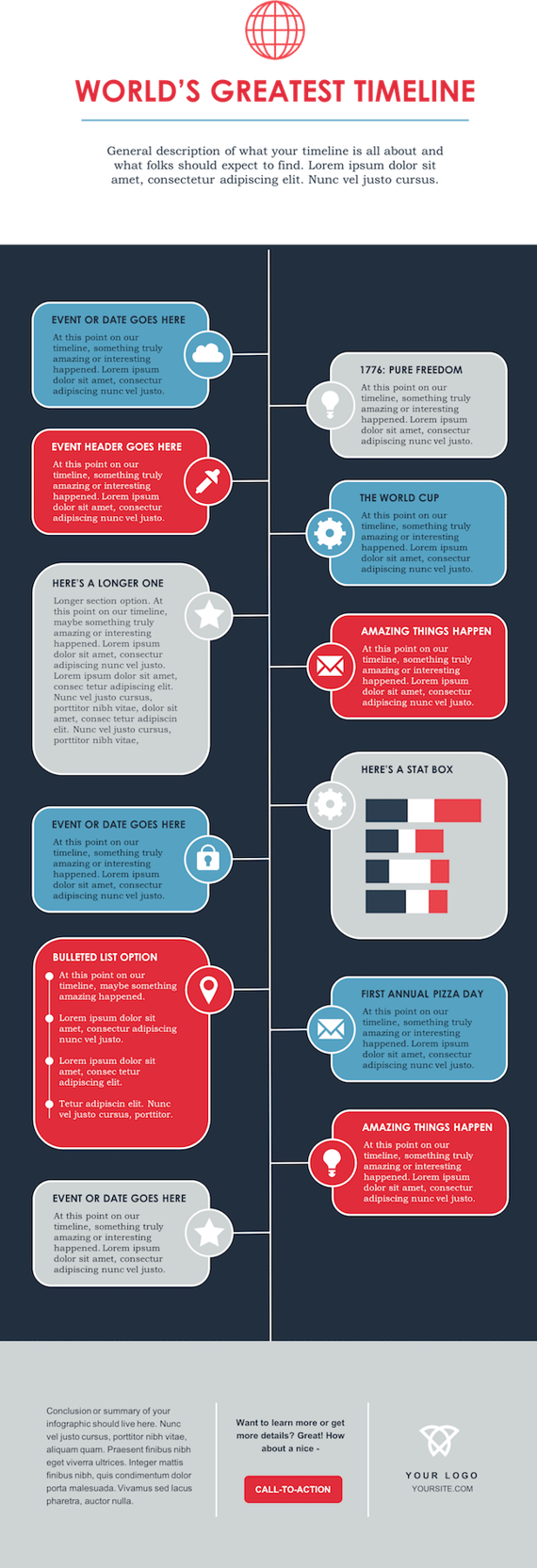
For the sake of time (remember, our mission is to create an infographic in under an hour), I'm going to create an infographic based on a compilation of steps and best practices we've put together in our new guide, How to Run an Inbound Marketing Campaign in 2018. For this, I've picked the "World's Greatest Timeline" infographic template from our collection of infographic templates, which is helpful for my data set since it outlines each step of the campaign creation process in order.
The timeline infographic template is pictured below, and full of opportunities to make it your own:
 Step 4: Customize Your Infographic
Obviously, this is the most time-consuming part -- but it's also the most fun! Simply come up with a catchy title, plug in your data/content, and adjust your font sizes and formatting. Feel free to switch up the graphics and colors, too, so they're relevant to your brand and the data you're providing. For other templates, you can use the simple graphs and charts provided by PowerPoint to create things like the bar graph or the pie chart. (Note: Download our free infographic templates for a cheat sheet for using PowerPoint's various features and tools.)
To customize the look of the infographic even more, you might add or change up the colors or font styles.
Finally, I included a link to my source (which can be found here), as well as the HubSpot logo so people know who created the infographic if it gets shared in social media or embedded on other websites -- which is definitely something you want, since one of the main benefits of creating infographics is their shareability.
That's it! This whole thing took me under an hour to put together -- much shorter than it would've taken me if I'd started from scratch (not to mention more professional looking ... and less expensive than hiring a designer). Here it is:

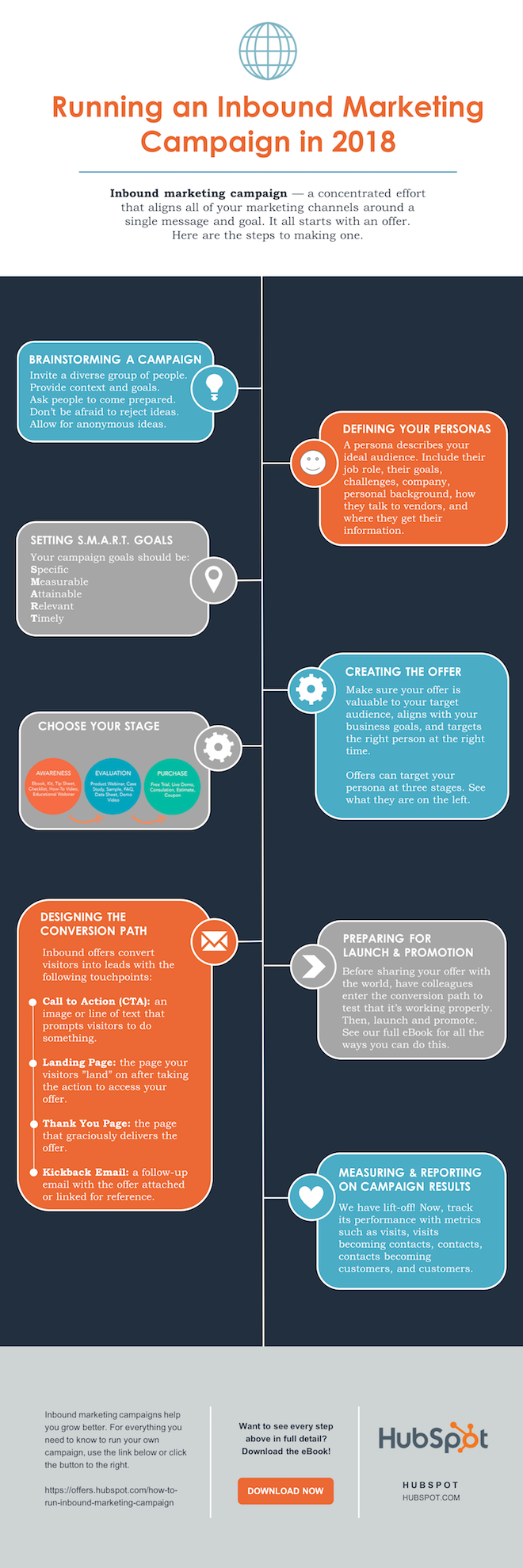
The only thing left to do is to publish and promote your awesome new infographic. As I mentioned earlier, we recommend using your blog to publish it (including your list of sources), including a Pinterest button for visitors to easily "pin" your infographic on Pinterest, and create and add an embed code for visitors to share it on their own websites and blogs, as we did above.
Want more? Read How to Create Top-Notch Visual Content in PowerPoint [Tutorial].