


Just like when I first watched The Matrix, when I initially heard the term “schema markup,” I was intimidated by the technical know-how I felt I needed to understand it.
However, just like the movie, understanding schema markup isn’t as difficult as you might think.
As a marketer, schema markup is important because you want to make it as easy as possible for search engines to crawl your website.
The easier it is for Google to understand your site, the higher in search engines your website can appear.
Below, let’s review what schema markup is, where to add it, and how it can improve your website’s structure.
Schema markup is code you can add to your website that helps search engines return better results for users. Essentially, it gives vital information to search engines to include in your listing that can improve visibility online, as well as click-through rates.
In 2011, top search engines including Google, Yahoo, Bing, and Yandex collaborated to create schema.org, which is a “collaborative, community activity with a mission to create, maintain, and promote schemas for structured data on the Internet, on web pages, in email messages, and beyond.”
Ultimately, schema markup is a form of microdata. According to Wikipedia, “microdata is an HTML specification used to nest metadata within existing content on web pages. Search engines, web crawlers, and browsers can extract and process microdata from a web page and use it to provide a richer browsing experience for users.”
For instance, schema markup will create an enhanced description -- sometimes referred to as a rich snippet -- which will appear in search results.
As a result of using microdata, your website’s structure will be simple and easy for search engines to crawl, making it easier to appear higher in search results.
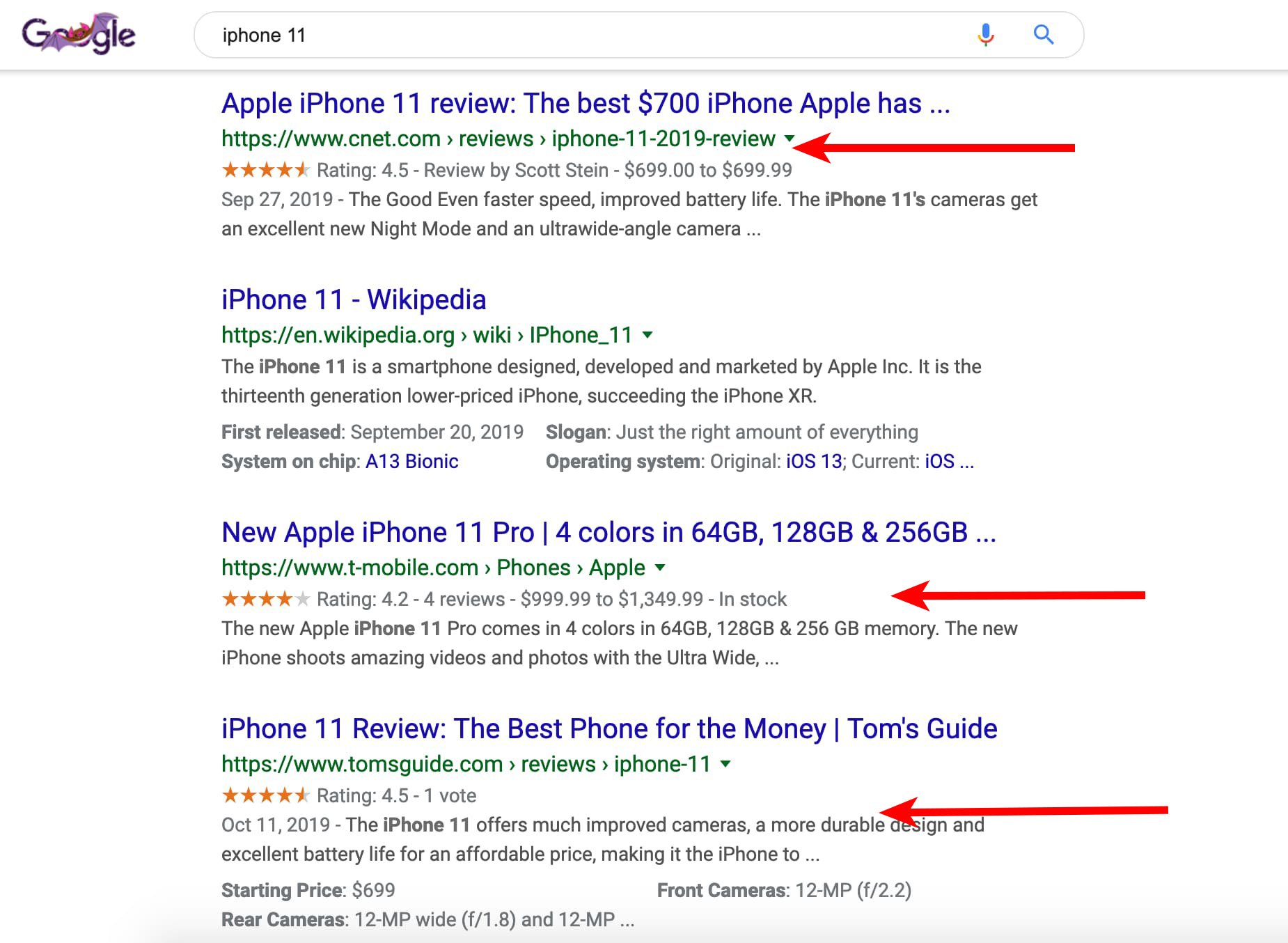
Below is an example of a search engine results page featuring listings with and without schema markup data. As you can see, three of the top four results for the iPhone 11 have schema markup data including ratings, reviews, and price.
Although T-Mobile and Tom’s Guide are the third and fourth listing down, using schema markup microdata can improve its click-through-rate. Plus, it helps the listing stand out from the rest.
 In the example below, there are three listings for Betabrand yoga pants on Google. The ones from Betabrand and Good Housekeeping don't include additional information.
However, the one from Amazon includes ratings and reviews.
Again, including this type of information helps search engines provide more information that can persuade users to click on your listing.
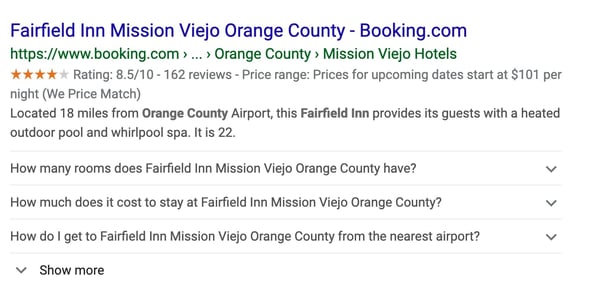
 In the example below, you can see Booking.com used schema markup to include ratings, reviews, price, and Frequently Asked Questions for an Orange County hotel. In their listing, they include a drop-down, answering questions a user might have.
If someone is searching for and might be staying in that hotel they can learn how close it is to the airport, the average cost, and the ratings.
You can add a variety of microdata depending on your service or product.
For example, you can include:
The options are endless. No matter what service or product you sell, you can use schema markup to enhance your search engine listings.
So, how do you add schema markup to your site?
The process is actually pretty simple.
Step 1: Go to Google’s Structured Data Markup Helper
Step 2: Select the type of listing you want to add schema markup to. Then, copy and paste the URL in the form field.
Step 3: Add schema markup data on the right pane by filling in the information you want to show up.
Step 4: Hit “Create HTML" button.
Step 5: Copy and paste the yellow, highlighted code. This is your schema markup code. Alternatively, you can hit the “Download" button to grab the code.
Step 6: Paste the code into your content management system.
Once you’ve gone through this process, you’ll want to then test your schema markup to make sure it shows up correctly in search engines. Below, we’ll review how to test your listing.
Now that you’ve added the schema markup code to your site, it’s time to test it out. You can do this by using the Google Structured Data Testing Tool.
You can test your schema markup two ways: by URL or code.
To test the URL, all you need to do is copy and paste the URL of the webpage you want to see. Then, the tool will showcase a preview of your listing.
To test the code, you can copy and paste the code the structured data markup tool generated for you. Again, a preview of your listing will appear.
While schema markup may seem technically intimidating, it’s actually a simple process. By using schema markup code, you can increase the visibility of your search engine listings and improve click-through-rates.

Nowadays, video is an undeniably popular channel for marketing purposes.
In fact, in 2019, 87% of businesses use video as a marketing tactic -- a number drastically higher than just two years prior, when only 63% used video.
If you're an email marketer, I'm willing to bet you've considered how you might spruce up your subscription and click-through rates with video. It's a good idea in theory, with two-thirds of consumers preferring video over text when learning about new products or services.
In reality, however, it can be tricky. Major email clients including Gmail, Yahoo, and Outlook don't support embedded videos, so your subscribers either won't be able to watch your video within the email, or worse -- they won't see your email at all, because it'll end up in their spam folders.
Fortunately, there's a creative workaround to help you embed part of your video within your email, and incentivize subscribers to click-through to watch the rest. Here, let's explore how to do just that.
There are two options you might consider when embedding a video within your email -- you can either embed a GIF of your video with a "click here to watch full video" CTA, or you can embed a still photo of your video, and when subscribers click the "Play" button, they'll be re-routed to your video's URL.
Let's explore the GIF option, first.
You can use the following instructions on any video from a video hosting platform of your choosing, including YouTube, Vimeo, Facebook, DailyMotion, etc. In the following examples we used a Facebook URL, but a YouTube URL would work just as well.
1. Find the URL of the video you want to include, or download and save your video to your computer. To create a GIF of a video I wanted to include in my email, I first went to HubSpot's Facebook page and copied the URL of a recent video the team uploaded to the site -- "How a Senior SEO Strategist Sees the World".
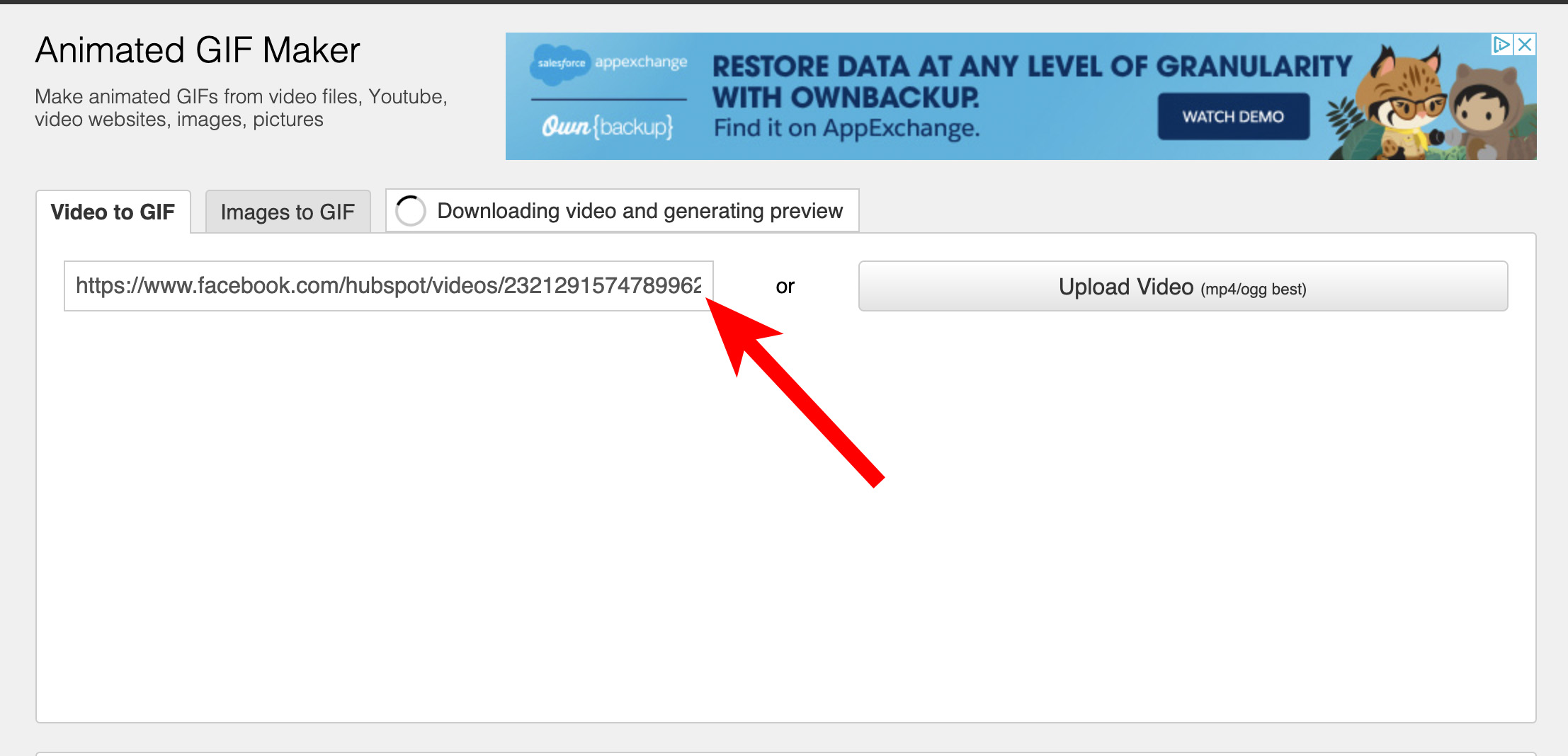
 2. Next, I went to Imgflip.com, a tool that enables you to create GIFs of videos. You can upload a URL directly to Imgflip, or you can upload a video you have saved on your computer. For our purposes, I copied and pasted the URL from HubSpot's Facebook page. Alternatively, you can copy and paste a YouTube URL or website URL.
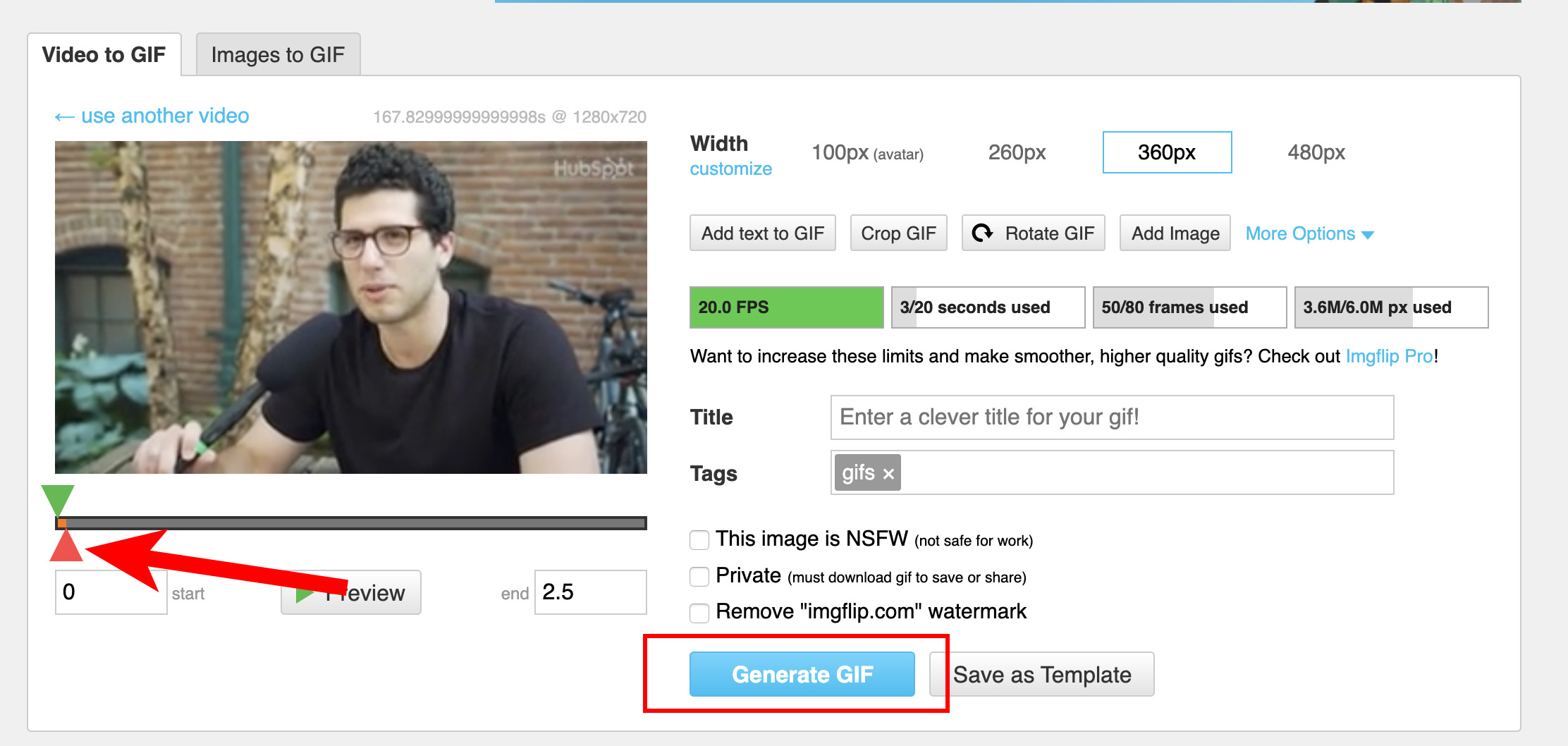
  3. Once your video is finished downloading, you'll see this pop-up. There are two triangles that can help you choose where you'd like to start and stop your GIF -- if you move the green one you're choosing a starting point for your GIF, and if you move the red one you're choosing an end point.
Once you've chosen a clip you'd like to use for your GIF, click "Generate GIF".
4. Once your GIF has been generated, you'll have the option to copy-and-paste the image link or image URL. Instead, click "Download .gif".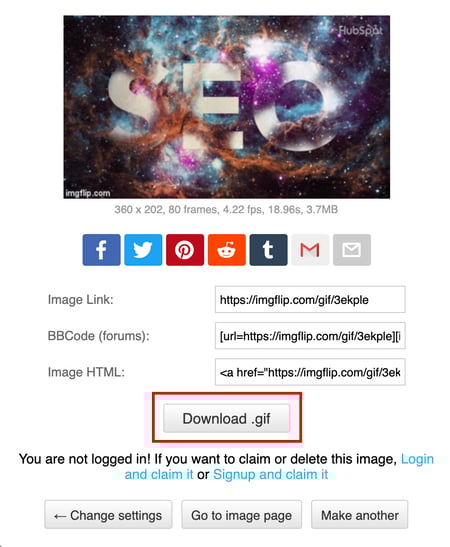
5. Now comes the fun part! Simply create your email to send to your subscribers, and drag-and-drop your GIF from your desktop into the email itself. Below the GIF, create a video CTA, like "Click to view full video here" with a URL to your video (the URL will likely lead to your own website, YouTube, Facebook, or another social platform).
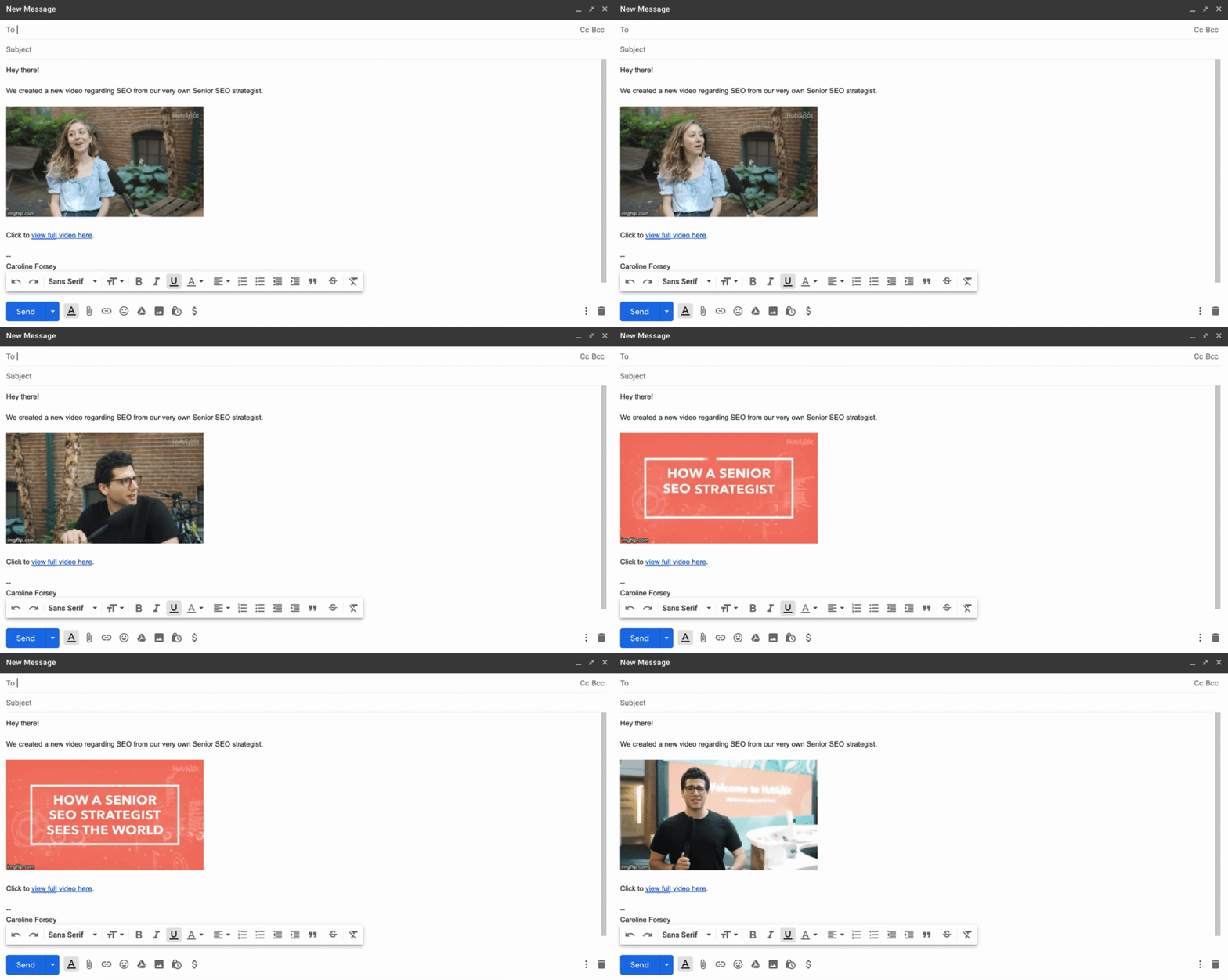
You can spruce up your email subject line with "Video included" to further incentivize click-through rates.
Of course, you'll want to use email marketing best practices when embedding a GIF, and ensure the video you want to include is truly a compelling, interesting piece of content for your email subscribers.
This is a unique opportunity to further engage with your prospects and customers, so make sure to use it wisely -- don't just send a video advertisement for your products or services.
Next, let's explore how you might include a still image of your video with a "Play" button.
1. For this example, I'll use the same video as before. Instead of copying the URL, however, I simply screenshotted a paused section of the video.

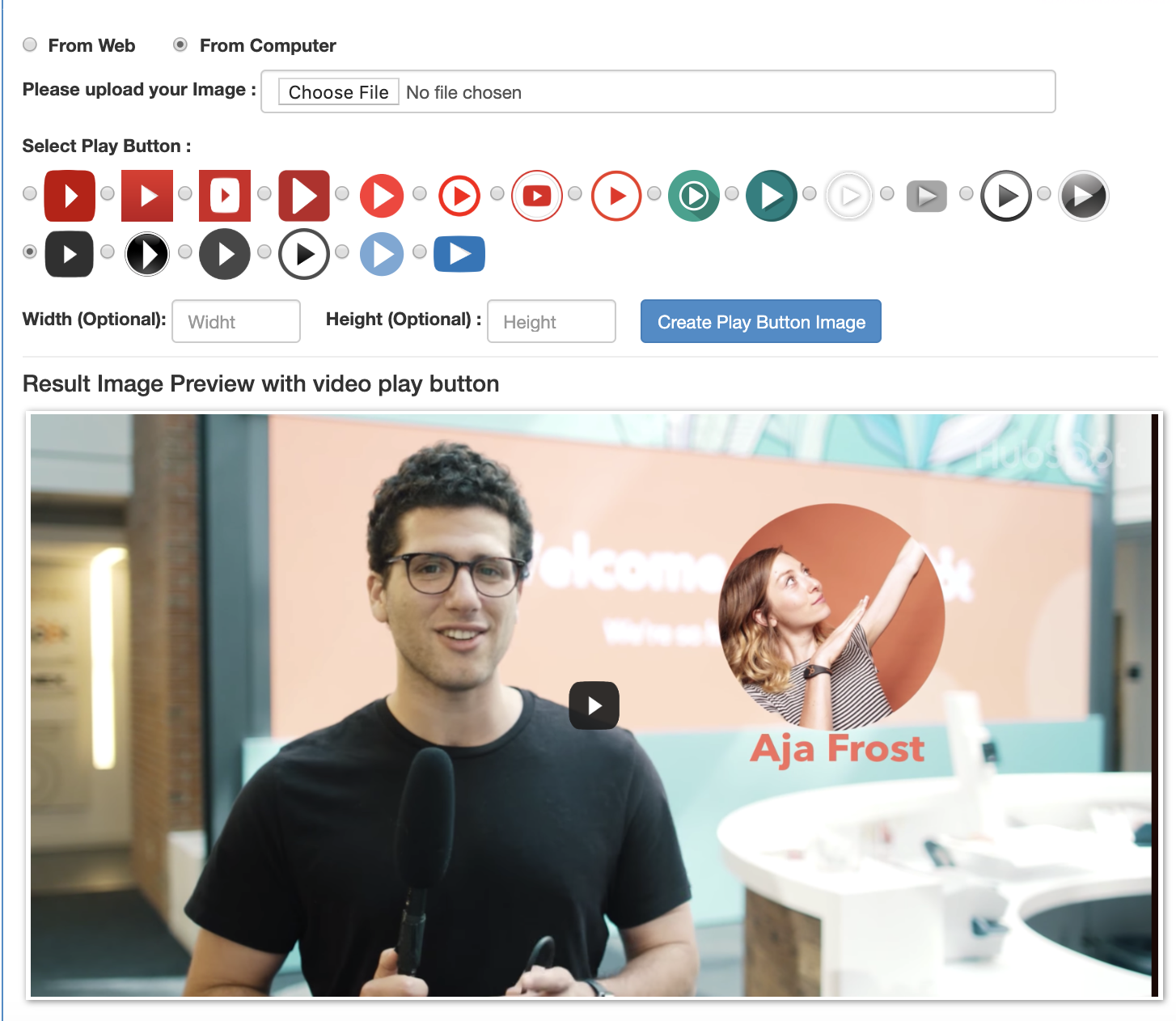
2. When I paused the Facebook video, it automatically included a "Play" button. However, if you screenshot a video while it's playing, you might not have a "Play" button. To add one to a still image, go to the website Add Play Button to Image, upload your image, choose a play button design, and click "Create Play Button Image".
Then, click "Download Image".
3. Next, simply click "Insert Photo" in your email to include the image with the Play button. Then, highlight the image and select "Insert Link". Copy-and-paste the link to the full video (in this case I pasted the Facebook URL, but you can also paste a URL to a website with your video, or YouTube).
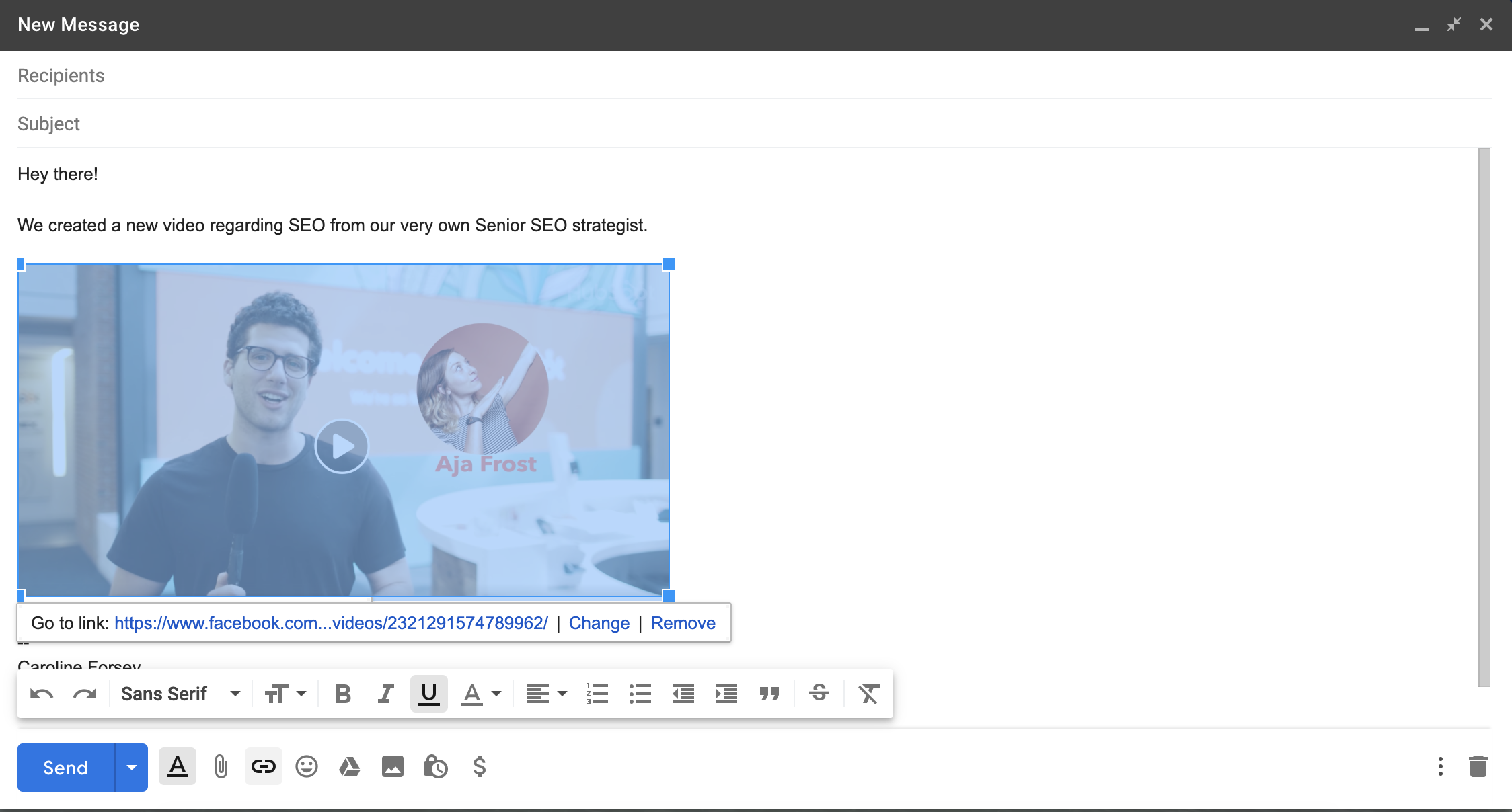
4. And that's it! Now, when a subscriber clicks on your image, they'll be redirected to the full video. Ensure the video auto-plays so the subscriber doesn't have to click "Play" again.

Finally, some email clients do support embedded video. If you feel it's the right strategy for your subscribers, you can embed a video within email using HTML5.
Here's an example of an HTML5 code you might use in your email:
<video width="300" height="200" controls>
<source src="movie.mp4" type="video/mp4">
<source src="movie.ogg" type="video/ogg">
https://www.facebook.com/hubspot/videos/2321291574789962/
</video>
If the video isn't supported, your subscriber can see a static image linking to another page, instead.
If you don't have experience coding, you might consider asking a developer to help you, or take a look at W3 School's HTML5 Video article.
However, it's important to note -- we don't recommend this strategy, since you risk either ending up in your subscribers' spam folders, or using code that many of your subscribers' email clients won't support. Ultimately, it could be more trouble for many of your subscribers' than it's worth.
To ensure your video can be seen by all your subscribers, I'd recommend one of the strategies listed above, instead.
If you're looking for other opportunities to boost email click-through rates and conversions, take a look at HubSpot's free email marketing tool.


