Monday, July 2, 2018

How to Build an Email List from Scratch: 10 Incredibly Effective Strategies

Did you know it costs five times more to attract a new customer, than to keep an existing one?

Focusing on customer retention is a valuable long-term solution for increased revenue and sustainable growth, but it’s not always easy to cultivate that kind of loyalty.

When I think about the brands I like best, like J. Crew, Spotify, and SoulCycle, I know I’m not a loyal brand advocate because of their products alone. I can get cheaper clothes, music, and groceries from plenty of other places. Ultimately, I’m a brand advocate because I believe in what they promote and I feel invested in their stories, like SoulCycle’s: “We aspire to inspire. We inhale intention and exhale expectation.” I relate to their brand messaging.

One of the ways J. Crew, Spotify, and SoulCycle cultivate customer loyalty is through valuable content. While there are many ways to do this, email marketing is one of the most powerful ways to reach your target audience -- if done correctly.

I subscribe to J. Crew’s email list to get their “Flash Sale: Midnight” offers. I subscribe to Spotify’s newsletter to receive special promotions. And I subscribe to SoulCycle’s emails to hear about unique classes happening near me.

In short, I subscribe to their emails to get value.

If you’re starting from zero, building an impressive email list can feel like an impossible feat. Here, we'll cover some high-quality strategies to build an email list from scratch. Best of all, these strategies are designed to cultivate a loyal email subscriber base, so you can use your emails to attract better long-term customers.

How to Build an Email List From Scratch

1. Create a personalized CTA (call-to-action) for each blog or landing page.

HubSpot has found personalized calls-to-action have a 42% higher view-to-submission rate than calls-to-action that are the same for all visitors -- that’s almost double your potential email subscribers.

It makes sense: the people who visit your blog post or web page are looking for something specific, so your CTA needs to meet those unique needs. For instance, if you’ve got a ton of traffic visiting your “List-Building Strategy” blog article, why not entice those people to subscribe to your email list by including a simple CTA like this: “Click here to download a free list-building toolkit.”

Of course, personalized CTAs only work if you have the resources to create that quality content in the first place, but that process doesn’t have to be expensive or time-consuming. Instead of a toolkit, you could also offer an e-book, a fun quiz, or an exclusive article from your CEO on list-building strategies.

If you offer content directly related to your visitor’s needs, your email newsletter won’t feel like a gimmicky advertisement. Instead, it will feel helpful and valuable -- key principles for a long-term customer retention plan.

2. Create a pop-up or slide-in for each page of your site.

A pop-up might sound initially bothersome, but I’m not talking about those early 2000 pop-up’s that promised you’d “Become a Model NOW”.

Instead, I’m talking about timed pop-up ads, or onsite retargeting. After a user spends a certain amount of time on your page, she can receive a pop-up relevant to the content on that page, or to her behavior. Examples include exit pop-ups, which appear when a user tries to leave the page, or scroll pop-ups, which appear after the user scrolls a certain percentage down the page.

Digital Marketer conducted a case study to determine the value of onsite retargeting. For one experiment in particular, Digital Marketer introduced a pop-up ad to returning visitors only, which appeared after a visitor spent 15 seconds on their site:
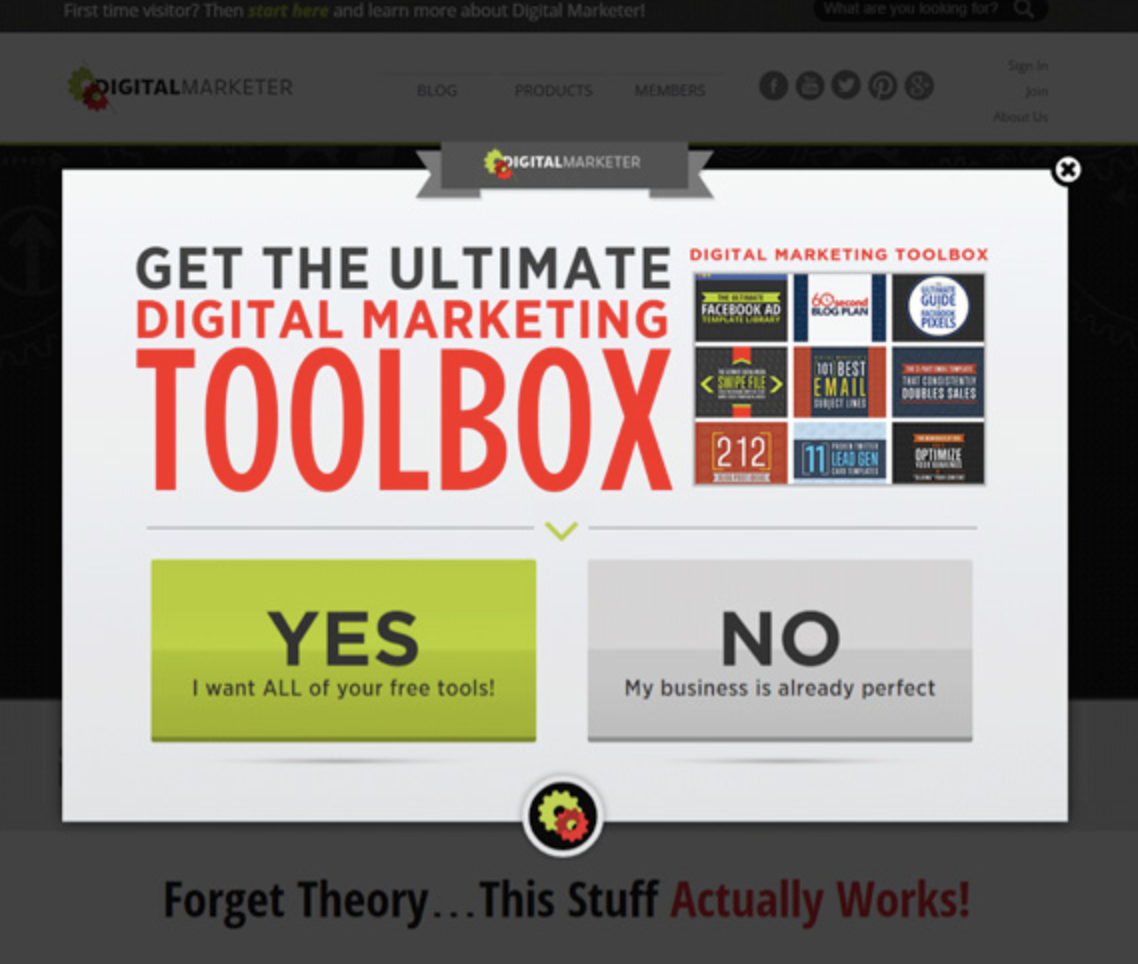
Digital Marketer ensured this pop-up didn’t show up if someone came to the page from the newsletter (in which case, they were already signed up), and also didn’t pop-up on a sales page (which could interrupt someone’s purchasing decision).

As you can see, Digital Marketer also took the time to offer meaningful content, a digital marketing toolbox, in their pop-up ad. With an impressive offer, your pop-up is no longer obtrusive or interruptive -- it’s simply helpful.

Ultimately, their campaign generated 2,689 leads in two weeks, and increased their average time on page by 54%. Pop-ups aren’t always gimmicky, and if done right, you’re able to appeal to your visitor with quality content when and where they need it.

3. Create a timed pop-up survey.

Most people don’t visit a new website and think, “Huh, so where’s the email sign-up form?” Often times, you need your viewers to feel invested in your content before you present them with a request for their emails.

To build your email list, you might want to reach out to visitors on specific pages with surveys related to that content. I’m more willing to answer an “A or B” survey question if I’m already invested in the content -- it feels like a fairer trade-off.

For instance, University of Alberta’s email subscriber list grew almost 500% in one year alone, thanks to a timed pop-up survey they implemented:
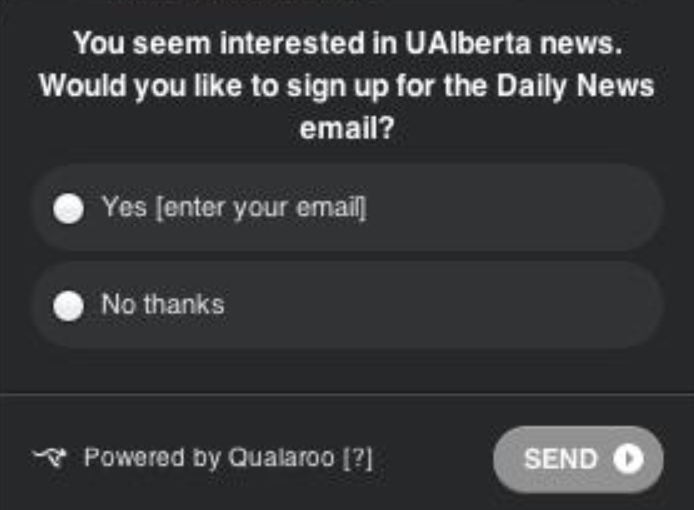
The University of Alberta’s pop-up survey only appears after a visitor remains on a news’ page for 10 seconds. At that point, the viewers’ seen some value from the content, so ideally they’re more inclined to sign up for emails from the source.

The University of Alberta’s survey pop-up is also one of the easiest forms I’ve ever seen. You enter your email and you’re done. People are often deterred from signing up when the form is too long and they don’t have the time, so a simple yes or no question might be your best bet for growing your email list.

4. Use humor or sarcasm in your CTA’s “no, thanks” copy.

We’re so infiltrated with “Yes or No” web offers on a daily basis, we barely see them anymore. To increase your email lists, you might want to try injecting some personality into your CTA copy.

I always pause and laugh when I see a CTA with a small, “No thanks, I don’t want to lose weight,” button underneath a prominent “Yes, sign me up!” link. It reminds me there’s a person behind the button, and, while it’s meant to be a joke, it also incentivizes me to hesitate before clicking “no, thanks”. It’s easy to click “no” when the CTA is “sign up for more emails!”, but it’s a little harder to say no to losing weight or getting richer.

I was reading an Optimonk blog post recently, and this CTA popped up:
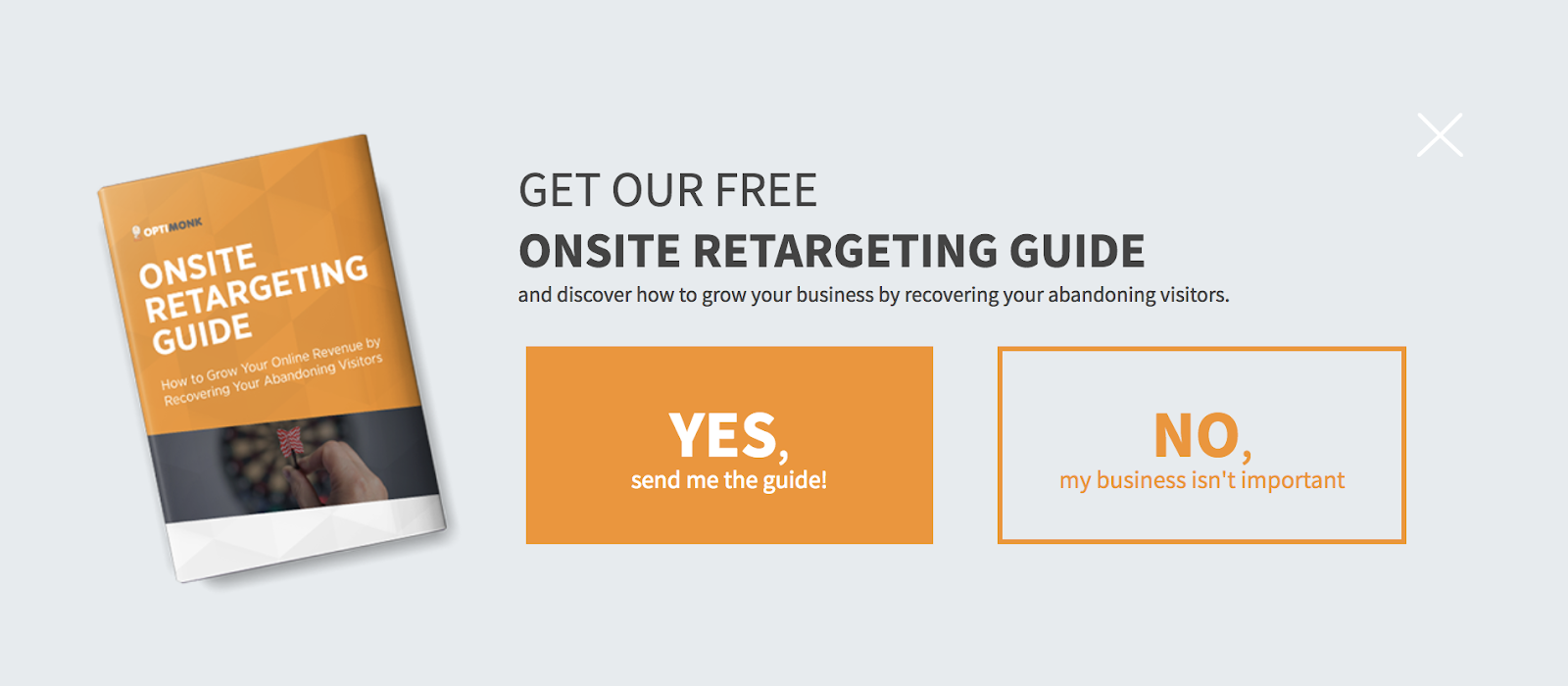
I was all set to click “No” without another thought, when I read the “my business isn’t important” part. It gave me pause, made me laugh, and, most importantly, made me reconsider my almost immediate decision to exit the offer.

5. Describe value in your CTA.

We’ve talked a lot about different formatting you might use in your CTA’s (including pop-up ads or personalized offers embedded in blog posts), but what about the language in the CTA itself? You can rely on more than humor and sarcasm to get clicks.

To optimize sign-ups, ironically, you don’t want to use the words “sign up.” Who wants to “sign up” or “subscribe” to more junk emails? Instead, you want to outline the value you can offer upfront, using language like, “Download,” “Featured”, “Exclusive,” “Access.”

For instance, you might write, “Download our exclusive e-book now,” and include an email subscription form, or, you might say, “Access all our exclusive offers.” Both of these CTAs make clear the value you’ll gain from providing your email address.

Your web viewers need to hear how your emails can offer unique and exclusive content that isn’t already available on your website. They want to believe your company is offering something special via email, or what’s the point?

6. Pitch your email newsletter on your social media accounts and email signature.

You might not have a long list of email subscribers, but that doesn’t mean you don't have a network. If you have a following on Twitter, a fan base on Facebook, or businesses you communicate with via email, why not use those firm and loyal connections to build an email list?

You might try pitching an email newsletter on your business’s Facebook, Twitter, or LinkedIn accounts. The people who follow you on those sites already know they like you, but they aren’t necessarily the same people who receive your newsletter. Give them the option.

If you’re uncomfortable pitching your email newsletter on social media, or if you don’t have a large following on any of your accounts, you could also include a link in your email signature -- that link could go directly to your email newsletter, or it could be a link to a blog post or landing page with email subscription CTA’s.

You communicate daily with a diverse group of people via email, and when they get value from your personal emails, they might want the option to click a link and explore your company in more depth.

7. Create more landing pages.

HubSpot conducted research and found companies see a 55% increase in leads when you increase the number of landing pages from 10 to 15.

It makes sense: individual and personalized landing pages allow you to appeal to a wider demographic. Every person who visits your site needs something different, so the more landing pages you can create to answer each person’s individual concerns, the more sign-ups you’ll gain.

It’s like a restaurant menu. The more you can offer to cater for specific demographics, the more customers you’ll bring in. Someone could be looking for the best gluten-free pizza, while someone else might just want some good sushi.

8. Encourage everyone to sign up immediately.

You want to strategically place personalized CTAs where it counts -- on landing pages and blog posts. But what about the rare, but real, visitors who want to sign up immediately?

If your newsletter primarily centers around one or two topics, it’s relatively easy to create a personalized CTA -- simply write a CTA that mirrors your newsletter’s purpose, such as, “Want free SEO hacks? Sign up for our newsletter!”

9. Include a CTA on your About Us page.

Your About Us page is one of the most potent pages in terms of conversion potential. Think about it -- how often do you visit About Us pages for businesses you don’t care about?

Ideally, your About Us page will prime visitors to want more from your business, but it might not be enough to convince them to purchase. A CTA that encourages them to sign up for a newsletter is easier to concede to than a “buy now” plea.

10. Try a scroll box.

Timing is everything. Your call-to-action works best if you catch visitors when they are, in fact, ready to take action.

Figuring out when your visitor is ready to convert depends on your website viewers’ behavior, so you’ll want to conduct A/B testing to determine where you need to place your CTA. Does it work best towards the bottom of a blog page, when it slides out to the right, or does it get higher conversions at the beginning of the page, sliding out from the left?

Ultimately, it will vary depending on your page’s content and your viewers, but a scroll box is a subtle and useful option to help you catch your viewers when they’re most ready to convert.

Sunday, July 1, 2018

36 Commuting Apps to Make Your Trip to Work More Productive

It's easy to think of commuting as a total waste of time. When you're standing on the train platform or waiting at a traffic light, every minute that ticks by can seem like a minute lost from an already jam-packed day at work.

But there's good news for those of you who wish you could spend that time more productively.

There are a lot of fun, creative apps out there that help you make use of that time -- whether it's a 10-minute walk or a 60-minute bus ride. Drivers: We don't advocate the use of any of the apps on this list that involve reading or typing.Download our complete guide here for more tips on improving your productivity.

Check out this roundup of 35 commuting apps that make your commute more productive. Try them out, and hey -- you might even start looking forward to your trips to and from the office. (Most mobile apps you'll see below are compatible with both Apple and Android devices, with a few exceptions.)

36 Commuting Apps to Make Your Trip to Work More Productive

Tracking Tasks and Goals

If you're the kind of person who likes to get organized first thing in the morning, use the following apps to list or review the things you need to accomplish that day. Taking that extra time to think about each task can help you prioritize and set realistic expectations.

1. Wunderlist

Wunderlist mobile app for tracking your tasks and goals

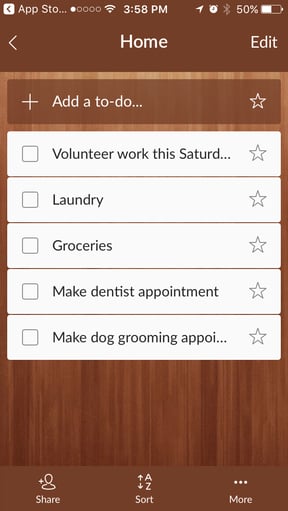
There are a number of to-do list apps out there, but Wunderlist is among the best. This app syncs between your mobile devices and your personal computers and allow you to drag and drop tasks between days and categories, as well as set alerts and due dates. You can even share lists and notes with others.

2. Evernote

Evernote mobile app for tracking your tasks and goalsSource: Google Play

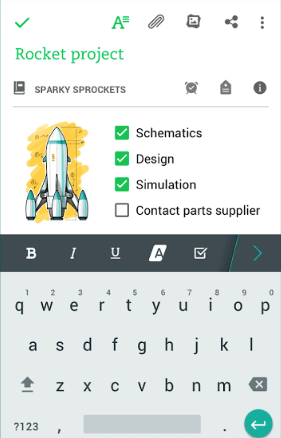
Evernote is a super clean task manager that segments your tasks into notes and even notepads -- allowing you to group similar notes together. While you can easily toggle between each note, you can also share specific notes with friends and colleagues, and open live chat windows with them to collaborate inside Evernote.

If you're an avid Evernote user, keep in mind Evernote has a voice recording function, too.

3. Dragon Anywhere

Dragon Anywhere mobile app for tracking your tasks and goals

Source: iTunes

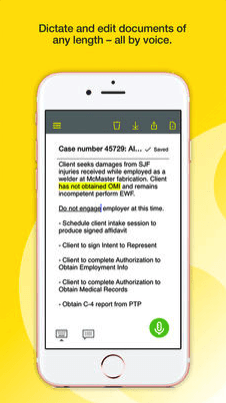
For you drivers out there, you can use the free app Dragon Anywhere to get your to-do list (and any other thoughts) down on your phone. Simply speak while the app is recording, and your text content will appear.

4. Coach.me

coach-me-app Coach.me mobile app for tracking your tasks and goalsSource: iTunes

The free version of the Coach.me app lets you set personal and professional targets, get reminders, and choose whether to make your achievements visible to a community of active users so you can give and receive support. And starting at $15 per week, you can hire a coach to actually help you achieve them.

5. Gmail

Gmail mobile app for tracking your tasks and goalsSource: Google Play

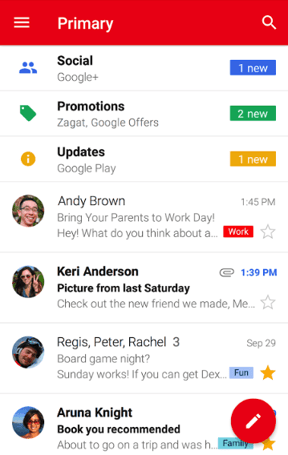
There's something so satisfying about arriving at the office with a clean inbox. That's why I like to go through emails and delete anything extraneous before I even get in to work. Gmail's mobile app makes this easy, allowing you to swipe emails to archive them, quickly label messages with color-coded tags based on the topic, and even "snooze" emails so they reappear in your inbox at a later date and time set by you.

It saves me at least a half-hour and a loss of momentum during my most productive time of day.

6. ASAM

ASAM mobile app for tracking your tasks and goalsSource: Google Play

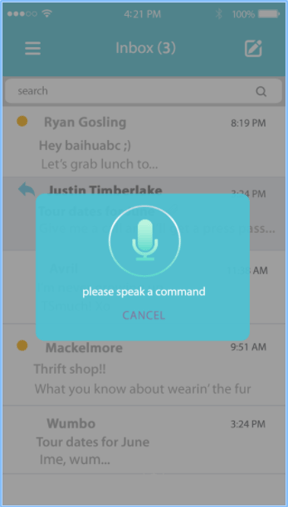
If you're driving, you can use ASAM -- a free app from AgileSpeech -- to "read" your emails. The app will read your emails out loud and word-for-word. (And when I say word-for-word, I mean it reads everything -- disclaimers, signatures, and other information you might've skipped otherwise.) When the message is finished, the app will "ding" and you have the option to dictate a reply.

7. HubSpot Mobile

HubSpot mobile app for tracking your tasks and goals as a marketer

Remember those days when you absolutely had to be at your desk to get your work done? Those days are close to being gone, thanks in part to the new HubSpot Mobile app.

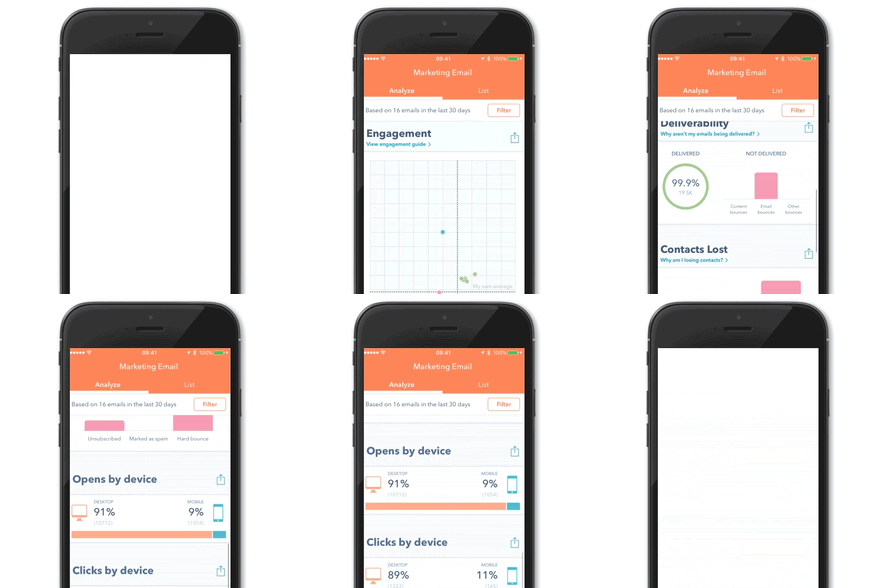
With this app, you can take advantage of your HubSpot software, even if you're on the go. It starts with a customizable dashboard that gives you an at-a-glance breakdown of the most important metrics to you -- landing page, blog, and email performance, as well as deals and sales tasks.

You can also easily access your contacts database, marketing insights (like email analytics) and your sales pipeline. For that last part, you can use the app to add notes, activities, or tasks, and keep track of deal stages.

8. iRobot HOME

iRobot HOME mobile app for tracking your tasks and goals iRobot HOME mobile app showing CLEAN button feature Weekly schedule displayed on iRobot HOME mobile app

Source: iTunes

Weekends: The perfect time to catch up with friends, family, the TV you missed last week and house-cleaning. Okay, how many of us really get around to that last one? (Hint: I don't.)

But my colleague, Eric Peters, let me in on a little secret about the internet of things (IoT). Thanks to its HOME app, if you own a iRobot device like Roomba, you can remotely clean your house from your mobile device.

"My new favorite productivity app is from iRobot," he told me. "I can turn on my Roomba and clean my floor, and not have to vacuum later."

What's more? You can even set a cleaning schedule for the week, in case you forget to spontaneously turn on your devices.

Learning a New Language

Once upon a time, maybe after college, you were almost fluent in Spanish. Or French. Or something else you learned in school. But then, you stopped practicing. Use the following apps during your trip to work to freshen up on the language you always wanted to master.

9. Duolingo

Duolingo mobile app for learning a new language Duolingo app screenshot showing bots featureSource: iTunes

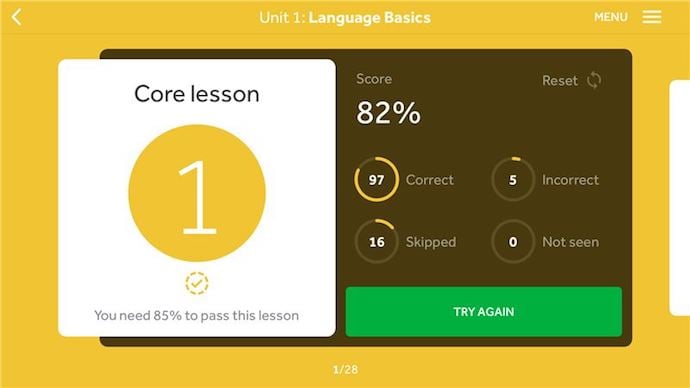
Want to get your language skills back on track? Duolingo is a fantastic (and free) app that makes (re)learning languages fun. Each lesson is short, painless, and super visual. Slate called it "the most productive means of procrastination I've ever discovered." Be warned, though -- it can get addictive.

10. Rosetta Stone

Rosetta Stone mobile app for learning a new language on your commute to workSource: Best Mobile App Awards

You've likely heard of Rosetta Stone, but did you know this classic language-learning software has a mobile app? This award-winning app teaches you up to 24 different languages using downloadable lessons and quizzes that you can take anywhere -- including your commute to work. complete a lesson per day, and you'll have a new language to impress your coworkers with in no time.

Listening to a Podcast or Audiobook

If you'd rather not spend any more time staring at a screen during your commute, use the following apps to listen to a podcast or audiobook instead. It's a pleasant way to spend any length of time. Plus, you'll learn a lot of really cool information you can impress your friends with later -- all during your commute to work.

11. Audible

Audible mobile app for listening to a podcast or audiobook

Source: Google Play

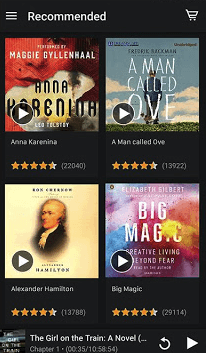
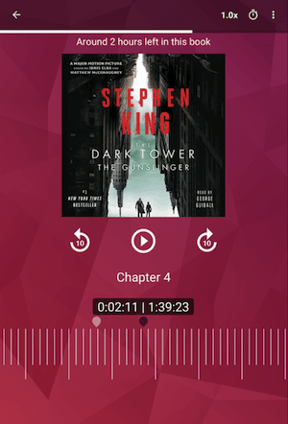
Audible, owned by Amazon, has the world's biggest selection of audiobooks, podcasts, and listenable programming -- all in your pocket. This mobile app constantly updates its library with new releases across genres, and allows you to listen to your chosen content without ads. According to Audible, your first audiobook is free after you download the app.

12. Podcasts

Podcasts mobile app from iTunes for listening to a podcast or audiobookSource: Apple

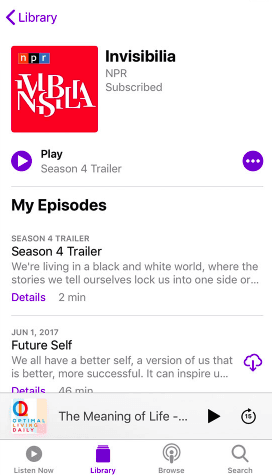
Podcasts is Apple's native mobile app for listening to your favorite podcasts on the go. The app streams nearly half a million shows, and allows you to download any episode to your library so you can listen anywhere without using cellular data. The more shows you listen to, the more recommendations you'll receive based on your listening history.

13. Stitcher

Stitcher mobile app for listening to a podcast or audiobook

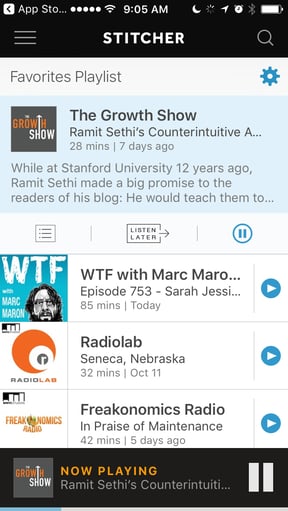
The app Stitcher lets you make playlists of all your favorite podcasts. Discover new podcasts from the Front Page feature, while shuffling through each playlist you create. In addition, Car Mode allows you to browse your playlists easily while you're driving.

As for which podcasts to listen to, our favorites include:

Looking for something else? Take a look at Stitcher's list of Top 100 Podcasts.

Reading an Actual Book

I don't know about you, but I constantly lament how little time I spend reading. You know, actual books, newspapers, or print magazines. And while I also enjoy turning a physical page, I always forget to pack my print materials before I leave for work. The following apps allow you to read any book, newspaper, or magazine you choose from your mobile device.

14. Kobo Books

Kobo, a mobile app for reading an actual bookSource: Google Play

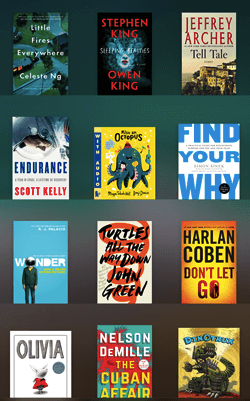
Kobo, like Kindle, is an e-reader that also offers a handy mobile app from which to access its massive library of ebooks and audiobooks. With more than 5 million titles to choose from, Kobo presents the content of your choice in the typeface you prefer reading it in. If your device's screen is a strain on your eyes, use Night Mode to darken the background and brighten the text. Each book title comes in up to 11 languages.

15. iBooks

iBooks mobile app for reading an actual bookSource: Apple

iBooks, for Apple devices, is an easy-to-use app for reading your favorite book on your mobile device. Peruse titles in all genres and age groups, while also discovering art and photography books for more passive reading on the way to work. You'll also find cookbooks -- save these for when you get home and need something to eat for dinner.

iBooks also lets you read your chosen books in one of eight different fonts and four visually appealing page colors. Sometimes you just need to alter the book's appearance while your eyes adjust during the morning trip to the office ...

16. Zinio

Zinio mobile app for reading an actual magazineSource: Google Play

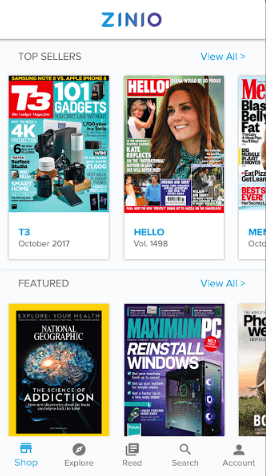
Zinio is the world's first mobile newsstand. Browse magazines from more than 6,000 different publications, search by topic, and save issues offline for reading without using cellular data. Zinio can also deliver reminders when new issues of your favorite magazines come out, and offer you savings on certain subscriptions you'd only get through this mobile app.

17. Kindle

Kindle mobile app for reading an actual book.Kindle2.png

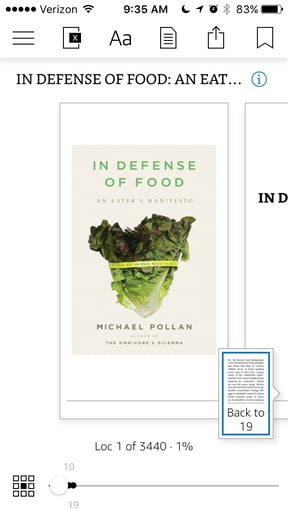
With Kindle, you can download full reading materials and enjoy them from your phone or tablet. Kindle transfers any ebook purchases you've made on Amazon right to your device, so you can take in whatever great literature you please, right from the bus or subway.

Staying Updated on the Latest News

18. Apple News

Apple News mobile app for staying updated on the latest news while commuting

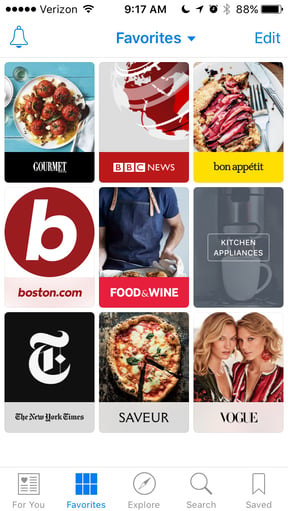
For news and magazines, we like Apple's News app, which lets you choose from a vast catalogue of publications that you can read right from your phone. You can store your favorites and choose from them with a simple tap.

19. Pocket

Pocket mobile app for staying updated on the latest news while commuting pocket-app-screenshotSource: iTunes/Just the Best Apps

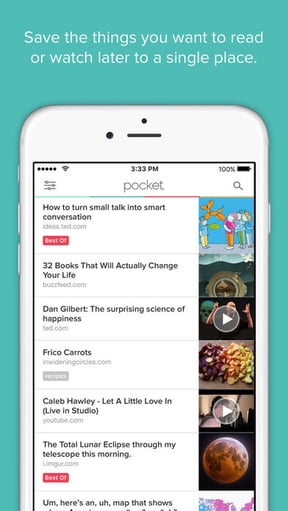
Using the Pocket app, you can save articles (and videos, and pretty much any type of content) in one place for easy reading on your commute. You can save content directly from your browser, emails, or from more than 500 apps like Twitter, Flipboard, Pulse, and Zite. So, whereas Evernote is a great app for long-term content storage, Pocket is perfect for bookmarking stuff to read later.

20. Feedly

Feedly mobile app for staying updated on the latest news while commuting .Feedly mobile app sharing iconsSource: Google Play

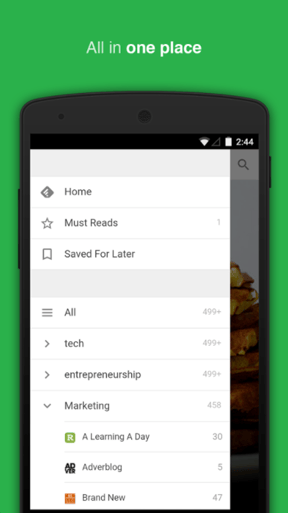
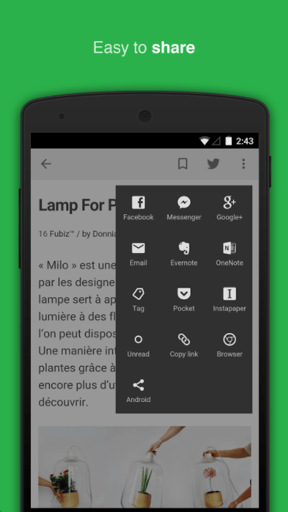
We've covered how to catch up on the latest content from your favorite publications. But what about your favorite blogs or other online news sources? Feedly is an RSS reader that lets you subscribe to the publishers whose posts you never want to miss. You can separate them into different lists, mark articles as "read," share your favorite pieces, and even browse for new content.

Social Media Apps

Not all of us are lucky enough to include browsing and posting on personal social media accounts in our job descriptions. Resist the urge to check your news feeds and notifications at work by doing it to your heart's content with the following apps during your commute.

21. Facebook

facebook-commuting-appSource: Google Play

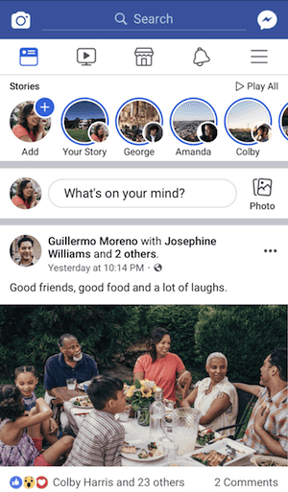
Facebook is a longstanding mobile app that gives you all the features of the Facebook website. Check your notifications and scroll through your newsfeed to see what your friends shared, commented on, and posted most recently.

22. Twitter

twitter-commuting-app Source: Google Play

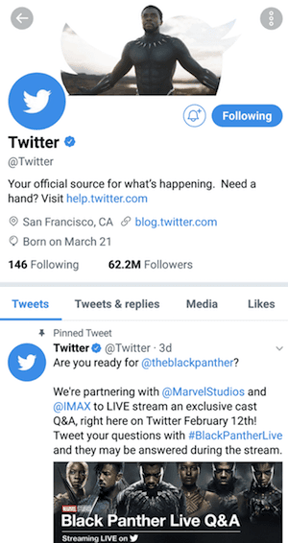
Twitter serves up the latest mentions, direct messages, and replies to your tweets, just as you'd see on Twitter's desktop site. Use the scrollable newsfeed to like and respond to tweets that interest you, while seeing what the publications you follow are writing and tweeting about as you commute to work.

23. LinkedIn

linkedin-commuting-appSource: Google Play

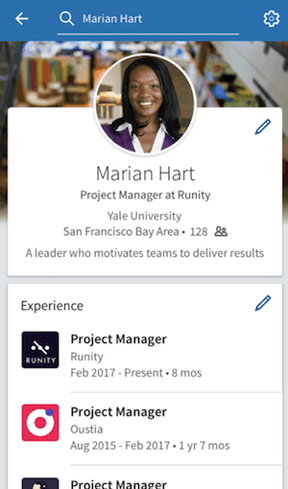
LinkedIn's mobile app allows you to view your new connection requests, direct messages, notifications, and even saved job searches. Of course, you'll also see the latest updates from your professional network on the same news feed as is on LinkedIn's desktop site.

24. Pinterest

pinterest-commuting-appSource: Google Play

Pinterest's mobile app helps you discover new topics to pin to your personal "board" while you head into work. Browse your favorite accounts and save the infographics, recipes, clothing, and similar content you might want to dig deeper into later that day.

25. Instagram

Instagram mobile app for checking your social media feeds

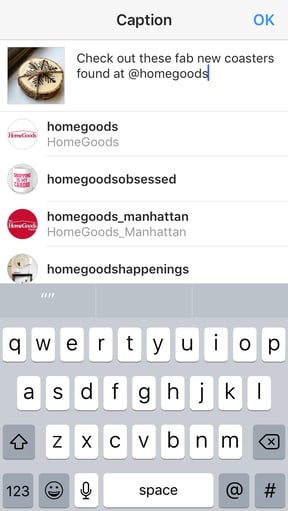
Although Instagram has a desktop website, it was designed for mobile. And the Instagram mobile app is perfect for checking out your friend's or coworker's recent vacation before work starts. Manage an Instagram account for your employer? Look through the Stories of the business accounts you follow for inspiration you might be able to apply to your own brand.

26. Twindr

twindr-screenshot Source: Gizmodo

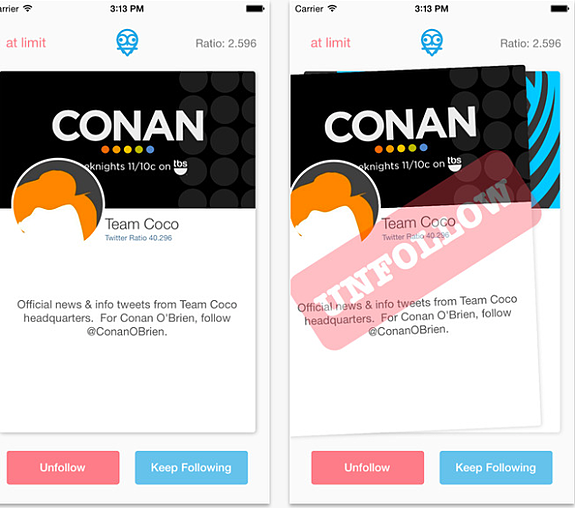
Ever scrolled through your Twitter feed and realized you've been just a bit too generous in how many people you follow? Twindr is a free app that works kind of like Tinder, but for unfollowing people on Twitter. All it takes is a few quick swipes to clean up your follower count.

Meditation Apps

Mondays, am I right? Suddenly, in the midst of pre-workday standing nap among the subway masses, you find your mind flooding with a mental to-do list of all the stuff you didn't get done when you left the office early last Friday. If this scenario sounds familiar, you've got to breathe -- which can be tough to do on a Monday morning. But the following apps can help you get zen during your commute, no matter how long it is.

27. Personal Zen

personal-zen-commuting-appSource: Personal Zen

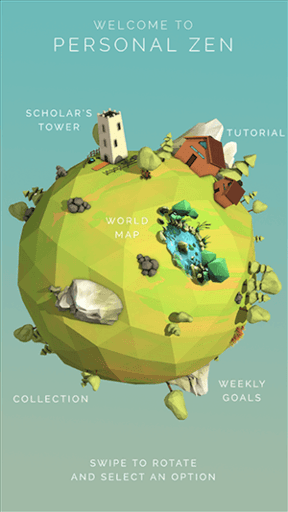
The simple act of entering work every day can be stressful. Personal Zen presents you with a fun, relaxing game designed to curb anxiety with a gentle brain-training exercise. The app was designed by actual neuroscientists, and is just what you need to warm up for the day.

28. Headspace

headspace-commuting-appSource: Google Play

It's alright if you've never seriously considered meditation. But you should seriously consider Headspace. According to the app's developers, this mobile app is a "mindfulness coach right in your pocket." Choose from a number of different meditation exercises based on what you want to focus on: breathing, unwinding, focusing, reducing panic, and more. Put your headphones on and try an exercise while you're on the bus or train in the morning.

29. Insight Timer

Insight Timer mobile app for finding your zen . Insight Timer Guided feature

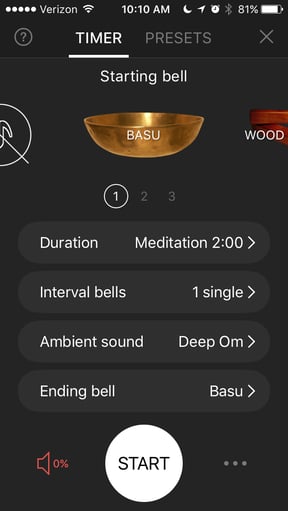
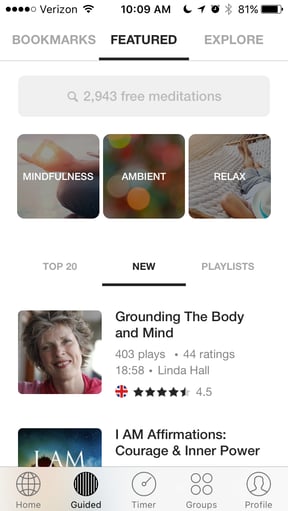
We especially like Insight Timer, since -- as its name suggests -- you can actually set a timer for the window you have to meditate and select a combination of ambient sounds to use in the background. Or, you can select from any number of the app's guided meditations. Om...

Health and Fitness Tracking Apps

A great way to get more exercise and burn more calories throughout the day is by building incremental physical activities into your daily routine. If that sounds like your style, use the following apps to draft a workout routine.

30. Fitbit

fitbit-commuting-appSource: Google Play

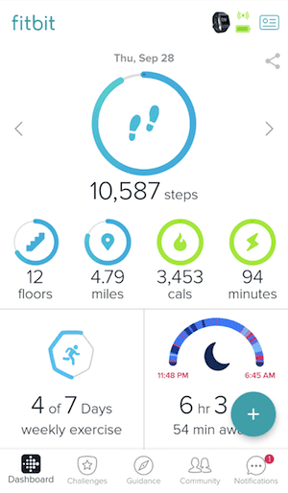
Fitbit allows you to set a step goal for each of your commutes. While it comes with a wearable wrist device you have to pay for, this hardware syncs with the app and measures your steps for free. If you have an iPhone, the Health app will track any steps you take when you have your device with you.

Each morning and afternoon, try to hit your goal. If you drive, park your car some distance away from the office and walk the rest of the way. If you take the train or a bus, get off a stop or two early and walk the rest of the way. If your mode of transportation gets delayed, get your steps in by walking back and forth on the platform.

31. Nokia Health Mate

nokia-health-mate-commuting-appSource: Nokia

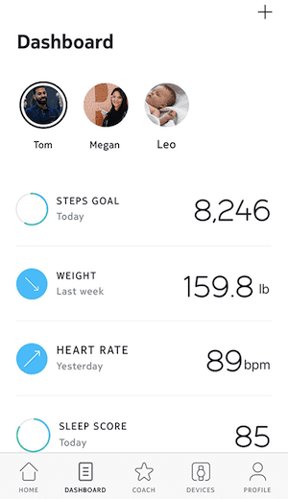
Nokia Health Mate is a digital report of your activeness, heart health, sleep quality, and weight management. Engage in various wellness programs and review your progress. You might even spend your commute seeing how well you slept the previous night.

The app integrates with wearable devices such as the Apple Watch and numerous watches from Nokia's Withings collection. It can also share data with fitness apps like Apple Health and RunKeeper.

32. UP by Jawbone

Jawbone UP mobile app for tracking your health and fitnessSource: Jawbone

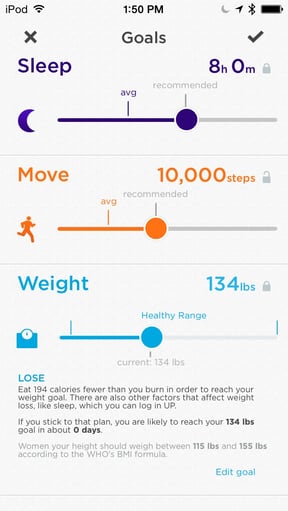
Jawbone's app, UP®, helps you make wiser choices about the food you eat and the hours you sleep. This personal coach learns more about you the more you use the app, and develops diets and sleeping goals just for you.

33. Apple Health

apple-health-commuting-appSource: Apple

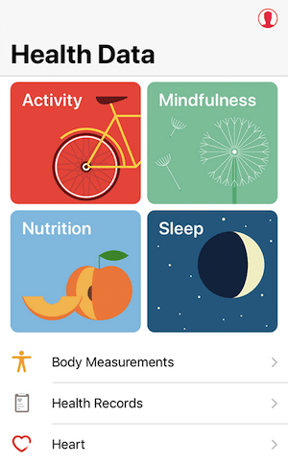
This is Apple's native fitness app, allowing you to coach yourself through programs that improve activeness, mindfulness, nutrition, and sleep. It seamlessly pairs with Apple Watch, and tailors its insight specifically to you -- based on your heart rate, body measurements, and more.

Meal Planning Apps

You work hard. Your days are long. That's why it's so easy to resort to something that's quick and already prepared for dinner. But you don't have to fall victim to the easy way out -- if you plan ahead. The apps below can help you do just that, making it simple to plan your meals for the week in advance.

34. Pepperplate

pepperplate-commuting-appSource: Google Play

This is your personal cooking assistant. From planning each meal to gathering the ingredients, Pepperplate is your personal menu, cookbook, and grocery list. Use this app during your morning commute to finalize the food prep you don't want to forget by dinner time.

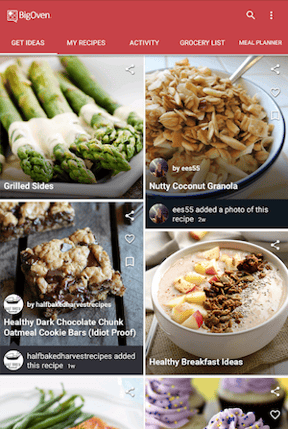
35. BigOven

bigoven-commuting-appSource: Google Play

Need to call up a quick recipe? No problem -- BigOven has 350,000 of them at the ready. Featured in numerous culinary magazines, this app helps you learn about and prepare the meals that are always on the table in your home. Use it to prepare that evening's dinner, and even find inspiration for dishes you might want to try the following weekend.

36. Eat This Much

Eat This Much mobile app for planning your meals .Eat This Much mobile app's pantry functionSource: iTunes

We get especially geeked-out over the Eat This Much app, in part because it's linked to grocery-delivery apps, if they're available in your area. Plus, it lets you set nutrition goals and set parameters for any dietary restrictions you might have, like vegan, gluten-free, or specific food allergies.

See? Your commute doesn't have to be so bad, after all.

And even if you're lucky enough to love your work, it never hurts to have that time to yourself to take care of the things that these apps are made to do. So get happy, get healthy and get "appy" -- it's one of the best ways to make the most of your precious morning time.

free productivity tips

free productivity tips